How-To Guides
VisiblAir Cloud Portal User Manual
Learn how to set up your account, add and manage sensors, review readings, configure alerts, and export data.
Learn how Cloud Portal alerts are evaluated, when emails are sent, how cool-off periods limit repeated notifications, how muted weekdays work, and how offline sensor alerts differ from metric threshold alerts.
The VisiblAir Public Map shows sensors that owners have explicitly made public. Before publishing your sensor, choose a map location that protects private addresses when needed.
- Sign in to the VisiblAir Cloud Portal.
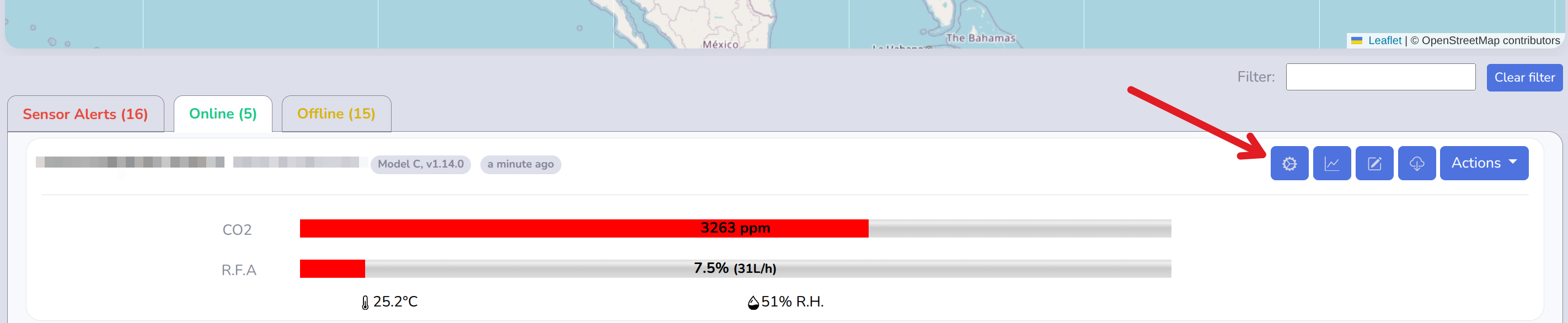
- Find the sensor you want to publish. If you have many sensors, use the filter field to search by the sensor name or UUID.
- Open the sensor controls and click the gear icon to open the sensor configuration.
- Open the Geo-positioning tab.
- Change Make this sensor public on the map to Yes.
- Set the map location. You can enter latitude and longitude manually, click the map to place the sensor, or use Find Me if the browser can access your current location.
- For home, classroom, or office sensors, consider placing the marker at an approximate location instead of an exact private address.
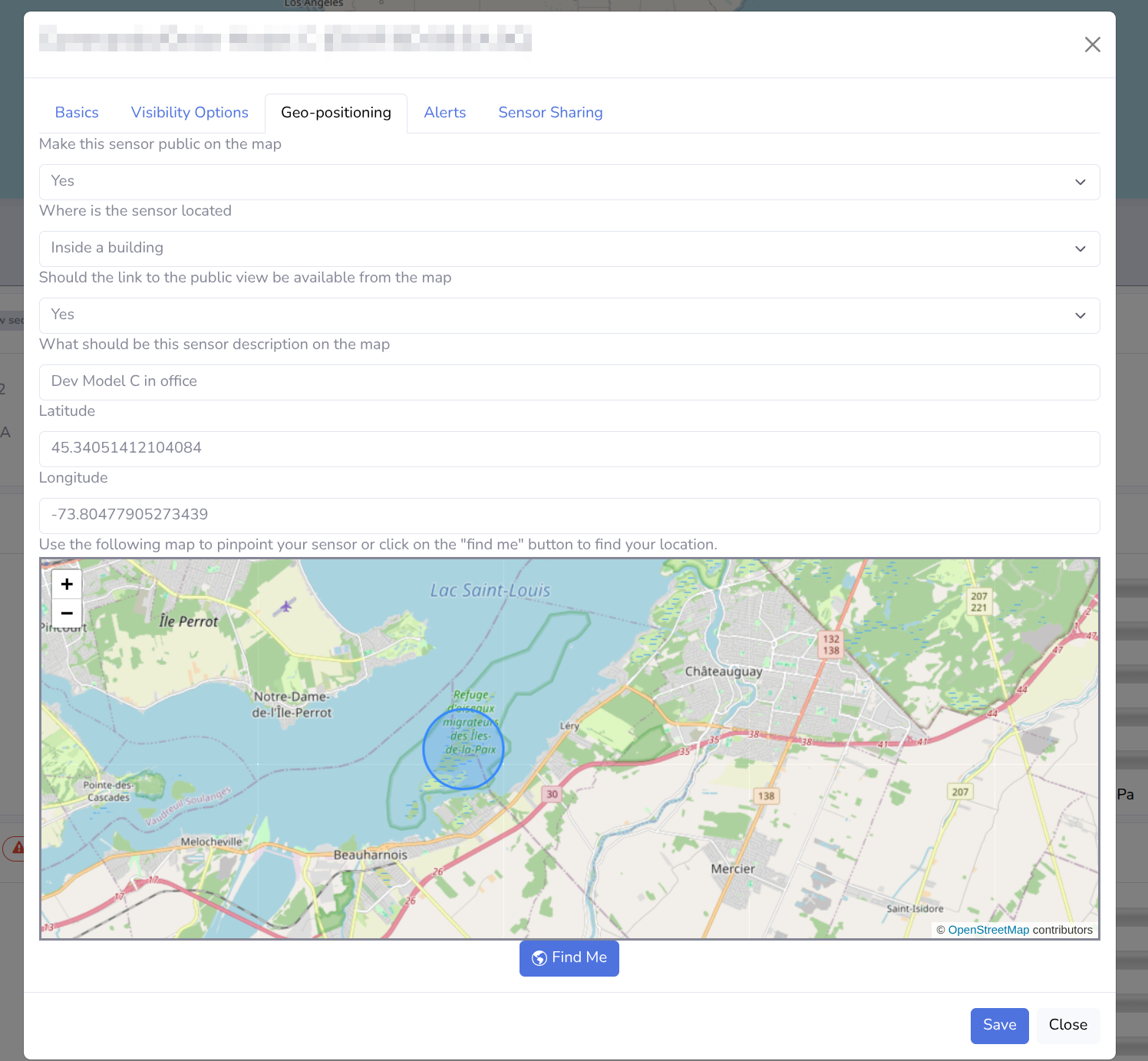
- Click Save.
- Open map.visiblair.com. Your sensor will appear on the public map at the location you selected.
Only make a sensor public if you are comfortable sharing the selected readings and displayed location. The public map is designed for community air-quality visibility.
Did you know that any cloud-enabled VisiblAir sensor can be integrated with HomeAssistant? It's actually pretty simple and relies on the data the sensor sends to the cloud portal periodically.
To add your cloud-enabled VisiblAir sensor to your HomeAssistant server simply use the following YAML in the configuration.yaml configuration file:
rest:
  resource: https://api.visiblair.com:11000/api/v1/sensor?uuid=YOUR_SENSOR_UUID&viewToken=YOUR_SENSOR_TOKEN
  sensor:
  - name: "VisiblAir Sensor CO2"
    unique_id: a74e63a8-6312-4d72-aeef-152fd21af0c3
    value_template: "{{ value_json.lastSampleCo2 }}"
    unit_of_measurement: "ppm"
    device_class: carbon_dioxide
  - name: "VisiblAir Sensor Temperature"
    unique_id: 887856eb-04e0-4858-a268-8af74979a486
    value_template: "{{ value_json.lastSampleTemperature }}"
    unit_of_measurement: "°C"
    device_class: temperature
  - name: "VisiblAir Sensor Humidity"
    unique_id: b479e1a4-8c64-4a33-a3e6-e56e633320ee
    value_template: "{{ value_json.lastSampleHumidity }}"
    unit_of_measurement: "%R.H."
    device_class: humidity
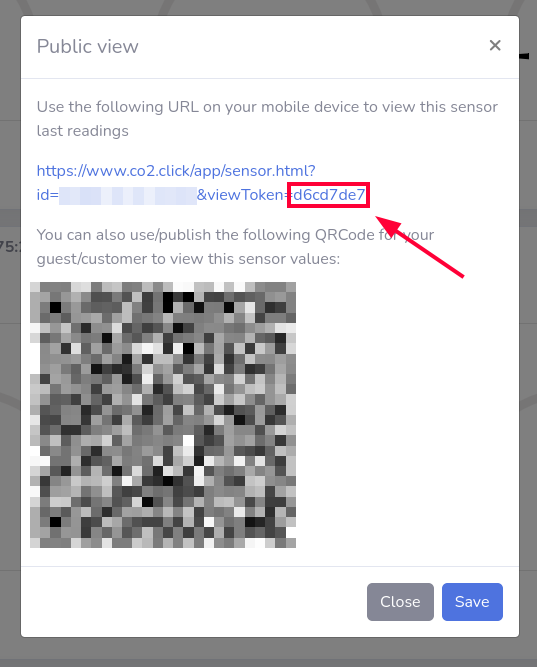
Replace YOUR_SENSOR_UUID with your sensor UUID (Wi-Fi MAC address) and YOUR_SENSOR_TOKEN by the unique token. This token can be obtained from the portal by clicking the "Public view" icon:
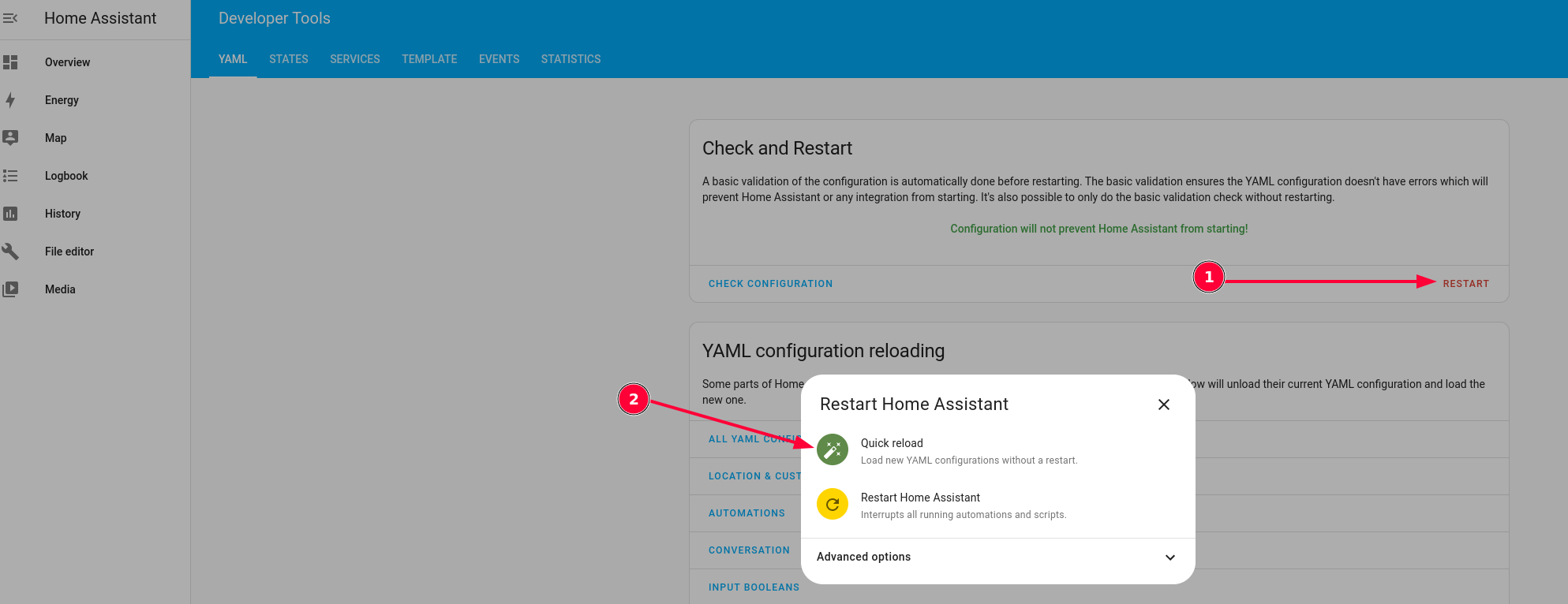
Then in your HomeAssistant WebUI go to the "Developer Tools" and Click on "CHECK CONFIGURATION" to ensure that the configuration you added is valid:
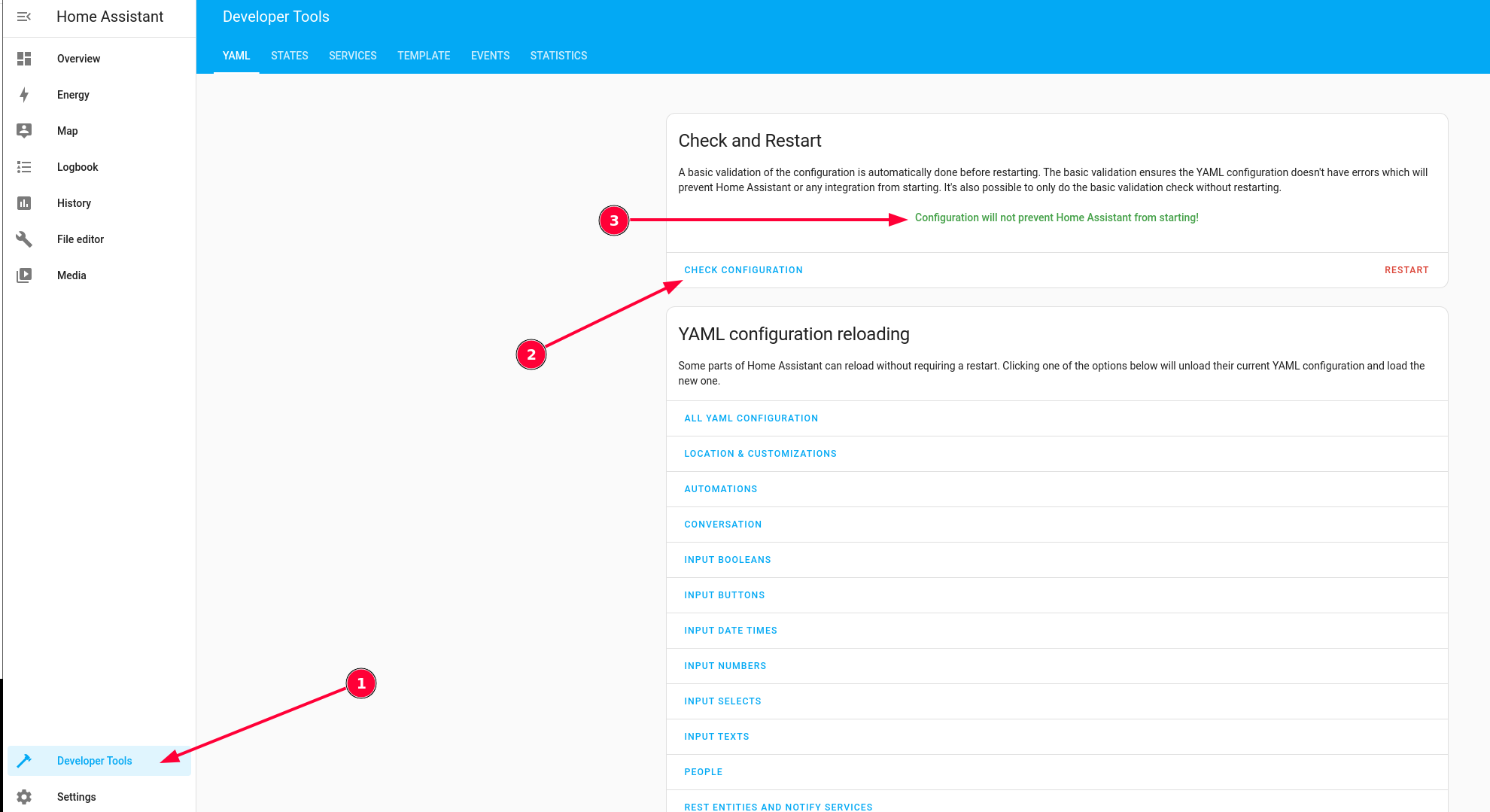
If everything is ok, you can click on "RESTART" and select "Quick Reload"
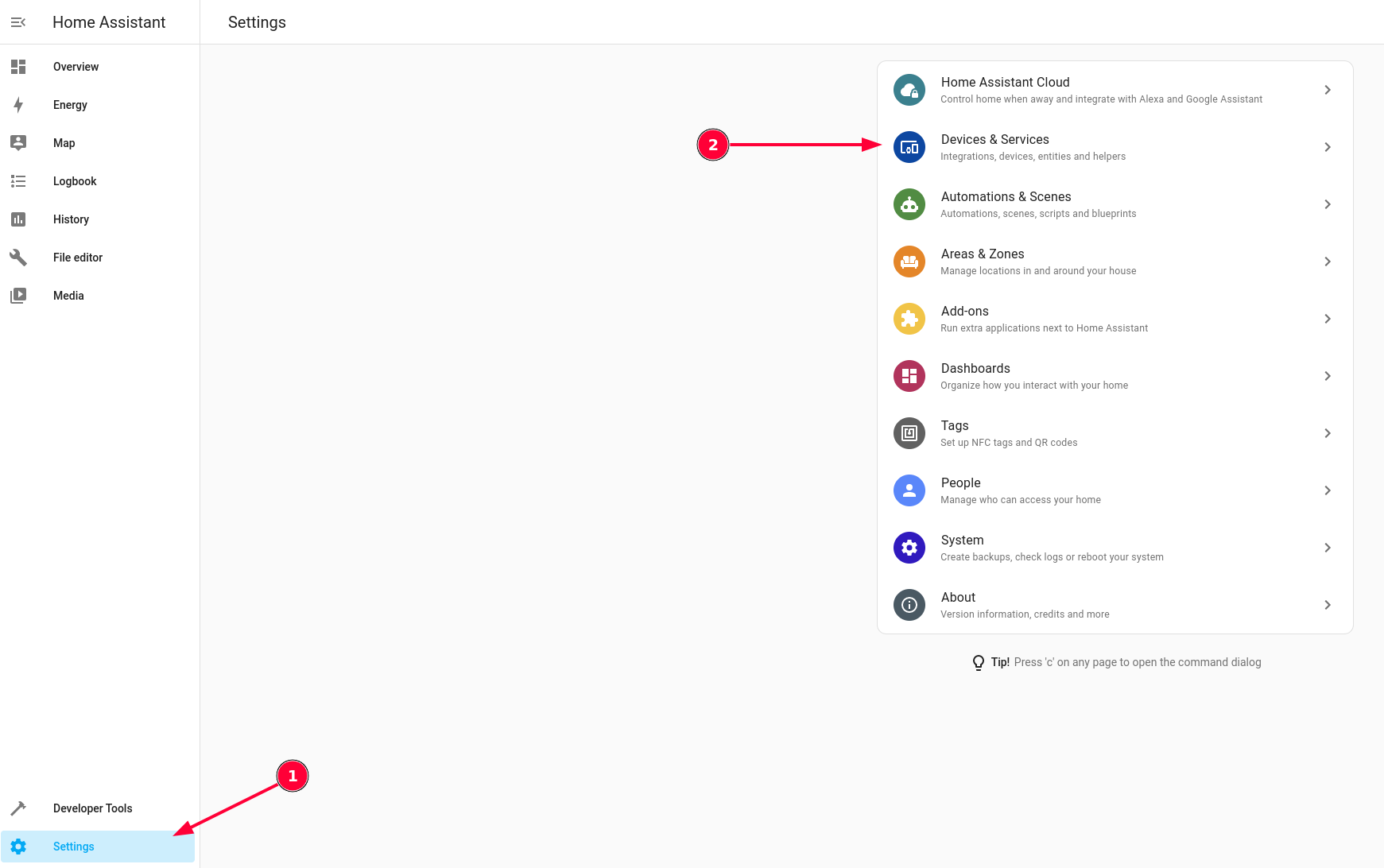
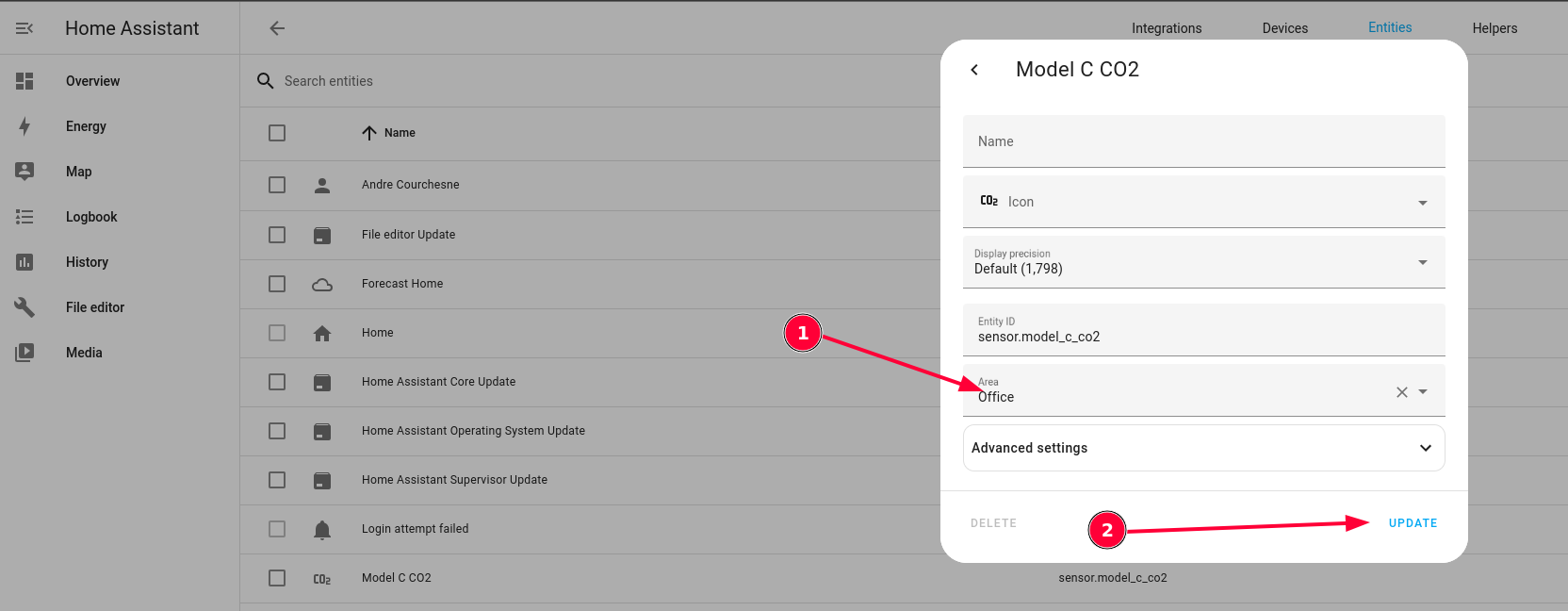
The next step is to allocate a zone/area to the sensor data. For this Click on "Settings" and then "Devices and services"
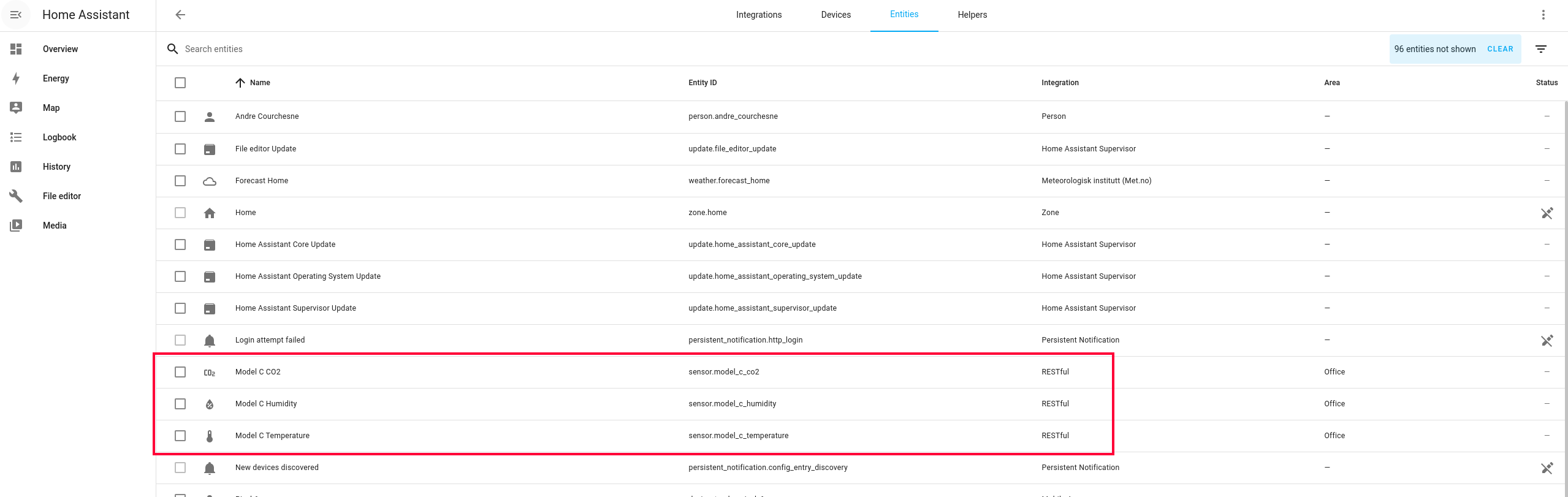
At the top click on "Entities" and you should see the sensor data available:
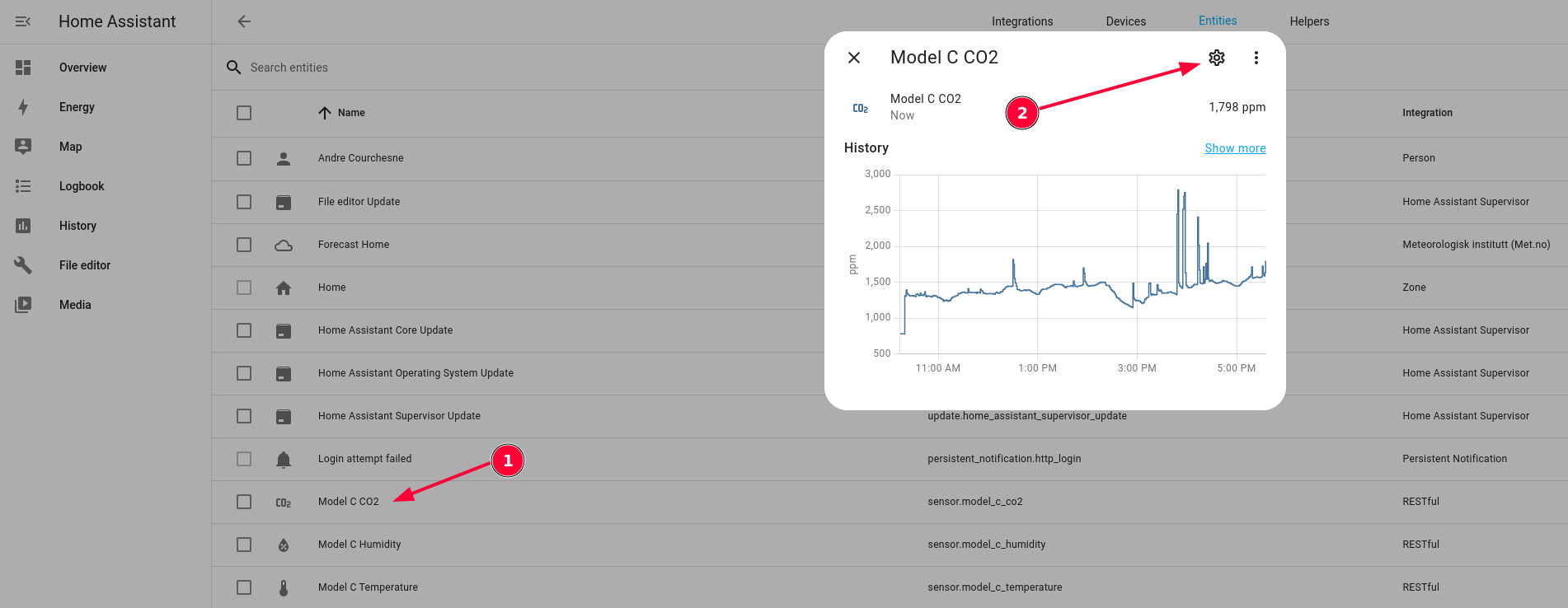
Click on each and then on the "gear" icon
Then select an area and click on "Update"
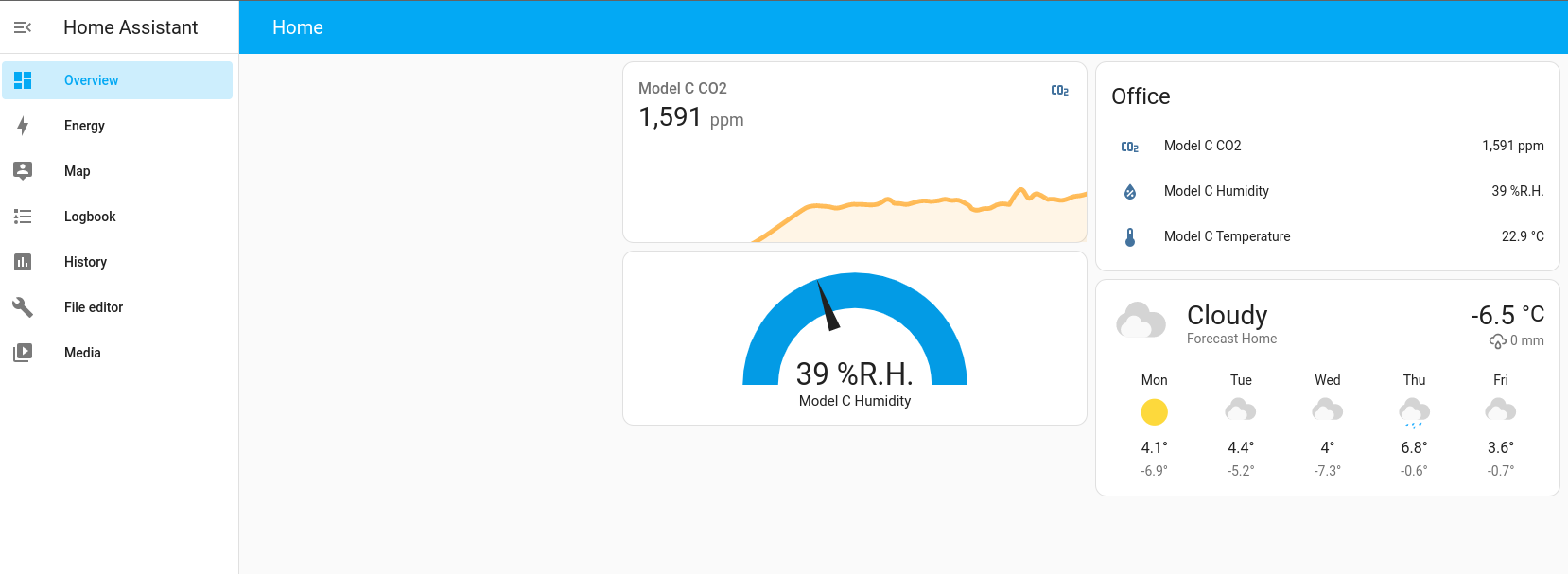
Your sensor values should now show in your dashboard for the area/zone you selected. You can also add graphs and gauges like shown below:
Note that your sensor must be connected to a Wi-Fi network, have internet access and be properly configured in the portal for your HomeAssistant server to be able to fetch the data.
VisiblAir Model E, E-Lite, and Model-O V2 sensors provide a local API that you can use to get their instantaneous state and measurements over your local network.
Model E and E-Lite
This API can be activated on your sensor by going to the Configuration menu, tapping on the "Data handling options" and checking the "Local API" checkbox.
Following this, when your sensor is connected to your Wi-Fi network, you can query its state. Here is an example using curl:
curl -s -H "Accept: application/json" -H "Authorization: Bearer MY_SENSOR_UUID_ALL_CAPS" http://MY_SENSOR_DNS.local:8080/stateMY_SENSOR_UUID_ALL_CAPS is your sensor UUID where all letters are capitalized.
MY_SENSOR_DNS is available in the Info screen of your sensor and will look like co2click-AABBCC where AABBCC are the last 3 bytes of your sensor UUID.
The API will return a JSON object that will look like this on Model E-Lite:
{
    "uuid": "MY_SENSOR_UUID_ALL_CAPS",
    "co2": 680,
    "humidity": 58,
    "temperature": 20,
    "pm01": 0,
    "pm03": 0,
    "pm05": 0,
    "pm10": 2.219000101,
    "pm25": 2.328000069,
    "pm50": 0,
    "pm100": 2.328000069,
    "pressure": 1020.398614,
    "voc": 98,
    "firmwareVersion": "1.5.1",
    "model": "E-Lite",
    "pcbVersion": 0,
    "isCharging": true,
    "isACIN": true,
    "battVoltage": 3.913000107,
    "battPct": 71.26999664
}
Model-O V2
The Model-O V2 local server uses standard HTTP port 80. Send a GET /state request to the device IP address, or use its model-o-aabb.local mDNS name where mDNS is supported:
curl -s -H "Accept: application/json" -H "Authorization: Bearer AA:BB:CC:DD:EE:FF" http://192.168.1.50/state
curl -s -H "Accept: application/json" -H "Authorization: Bearer AA:BB:CC:DD:EE:FF" http://model-o-aabb.local/state
Replace AA:BB:CC:DD:EE:FF with the device's Wi-Fi MAC address, including the colons. Unlike Model E and E-Lite, do not add port 8080 to the Model-O V2 URL.
The response follows the Model E local API shape where the Model-O V2 has equivalent readings. A typical response looks like this:
{
  "uuid": "AA:BB:CC:DD:EE:FF",
  "co2": 415,
  "humidity": 42,
  "temperature": 21.8,
  "pm01": null,
  "pm03": null,
  "pm05": null,
  "pm10": 1.2,
  "pm25": 2.3,
  "pm50": 3.4,
  "pm100": 4.5,
  "pressure": 1012.6,
  "voc": 98.7,
  "nox": 1.2,
  "firmwareVersion": "1.1.1",
  "model": "Ov2",
  "pcbVersion": 0,
  "networkTransport": "wifi",
  "networkInterface": "Wi-Fi",
  "macAddress": "AA:BB:CC:DD:EE:FF",
  "ipAddress": "192.168.1.50",
  "uptime": 1234,
  "pmSamples": 12,
  "wifiRssi": -62,
  "wifiSignalLevel": "fair"
}
Sensor readings that are not currently available are returned as null. When Wi-Fi RSSI is unavailable, wifiRssi is omitted and wifiSignalLevel is "unknown".
You can use this to perform automation of more advanced functions.
Hope you enjoy our sensors, and make sure to subscribe to our mailing list to receive more news like this.